macOS menu bar GPU monitoring

Remote NVIDIA GPU visibility without living in Terminal.

NVBeacon keeps an SSH-connected GPU server in your menu bar with live utilization, process detail, exit notifications, idle alerts, bilingual UI, and native Sparkle update support.

Homebrew
brew install --cask jaein4722/tap/nvbeacon
Built for
SSH + nvidia-smi
Remote GPU servers on macOS
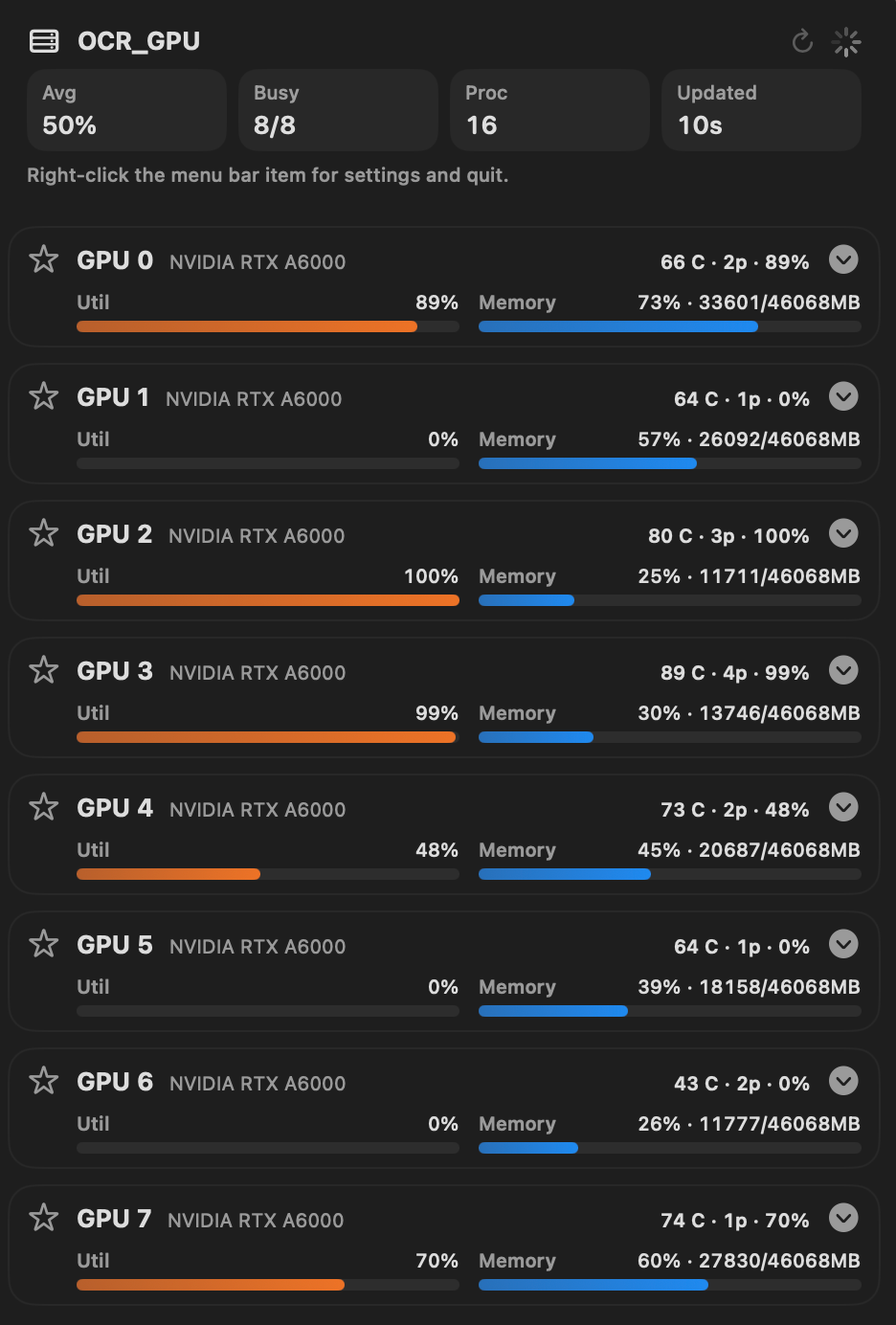
NVBeacon dark mode popover showing multiple GPUs, process details, and alerts
Why NVBeacon

It answers the questions GPU users keep asking.

Is the box busy?

Menu bar summary, configurable busy detection, and a compact popover make server load visible at a glance.

Which job is mine?

Per-GPU process detail shows user, PID, GPU memory, and command preview without keeping a shell open.

Can I reuse this GPU?

Star a GPU to watch for long idle periods and get notified when it becomes a candidate for the next run.

Did my job finish?

Track specific processes and get a native macOS notification when they really exit.

Screenshots

A focused macOS UI instead of another dashboard tab.

NVBeacon menu bar summary with GPU usage text
At-a-glance menu bar summary
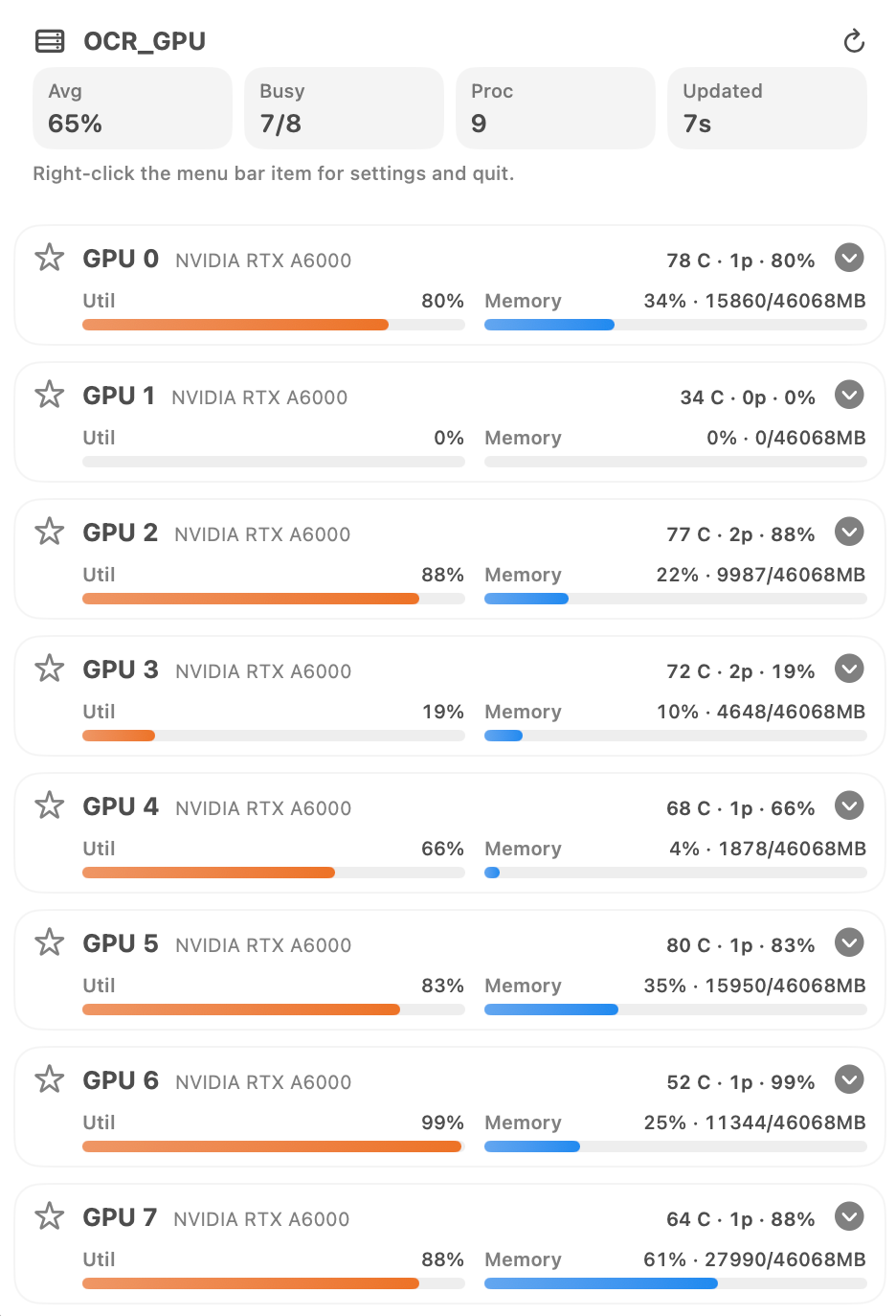
NVBeacon light mode popover UI
Light mode popover with per-GPU details
NVBeacon dark mode popover UI
Dark mode popover with process and alert controls
Highlights

Designed around real remote GPU workflows.

Native macOS menu bar UI
Remote monitoring over SSH
Process exit notifications
GPU idle alerts
Busy detection rules
Import from ~/.ssh/config
English / Korean UI
Light, dark, and system appearance
Sparkle update support
Quick start

Install, point at a server, and monitor from the menu bar.

  1. Install NVBeacon from GitHub Releases or Homebrew.
  2. Open Settings from the menu bar icon.
  3. Set an SSH target directly or import from ~/.ssh/config.
  4. Choose key-based or password-based authentication.
  5. Allow notifications if you want process exit or GPU idle alerts.